
ChatGPT Data Leak Prevention: How to Stop Accidental Data Leakage to AI Tools Using Microsoft 365
ChatGPT data leak prevention is quickly becoming a priority for organisations using Microsoft 365. As AI tools become part of daily workflows, controlling how data is shared becomes just as important as securing email or endpoints.
During a recent project, something came up that I am now seeing across more and more organisations.
The original scope of work was focused on Microsoft 365 security and governance. However, during workshops, it became clear that people across the business were already using tools like ChatGPT and Gemini as part of their daily work. There was no formal rollout or governance in place. Users were simply accessing these tools directly through their browsers.
At that point, I was asked to expand the scope to include controls around AI usage and data exposure.
That change brought a new layer of complexity and It was no longer just about securing identities, endpoints, or collaboration tools. Instead, the focus shifted towards understanding how information was being shared with external AI platforms and how to control that without disrupting productivity.
Why ChatGPT Data Leakage Needs Attention
In most environments, AI usage is already embedded into workflows. For example, users are:
- Pasting internal content into AI tools for refinement
- Uploading documents for summarisation
- Testing ideas using real customer or business data
From a business perspective, this improves efficiency. However, from a security standpoint, it introduces a new and often unmanaged data exposure path. Most organisations already have controls in place for:
- Email (Exchange Online Protection, Defender for Office)
- File sharing (SharePoint, OneDrive governance)
- External collaboration
However, those controls do not extend naturally to:
- Browser-based prompts
- Copy paste into AI tools
- File uploads into external AI platforms
As a result, sensitive data can leave the organisation without triggering traditional controls.
Where Existing Controls Fall Short
Many organisations initially attempt to block access to tools like ChatGPT. While this may seem effective, it rarely works in practice.
Users typically find alternatives quickly. They may switch browsers, use personal devices, or move to different AI tools. Consequently, visibility decreases and risk becomes harder to manage.
A more effective approach focuses on controlling how data is handled during AI usage rather than attempting to eliminate access altogether.
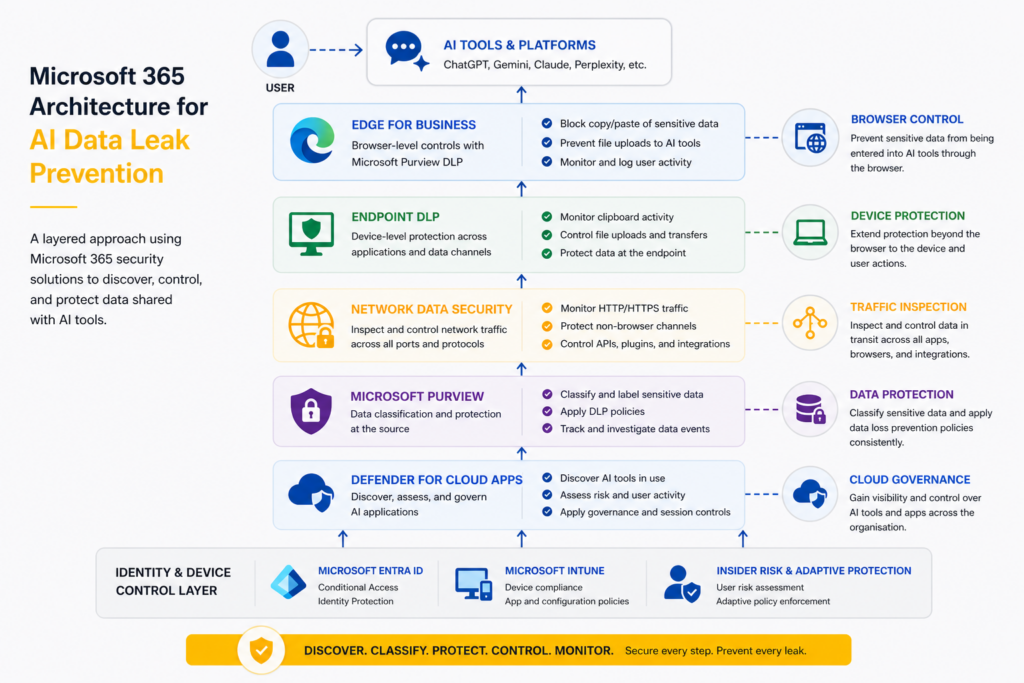
Microsoft Security Stack for AI Data Leakage
Microsoft provides a strong set of capabilities to address this challenge when used together.
Key components include:
- Microsoft Defender for Cloud Apps for discovering and governing AI applications
- Microsoft Purview Data Loss Prevention (DLP) for controlling sensitive data movement
- Edge for Business for browser-based enforcement
- Endpoint DLP for device-level protection
- Network Data Security for extended coverage across traffic
- Microsoft Entra and Intune for access and device control
- Insider Risk Management and Adaptive Protection for user-based risk controls
We will be discussing this Microsoft recommended approach to prevent data leakage to shadow AI.
Step-by-Step Implementation to Prevent Data Leakage to ChatGPT and AI Tools
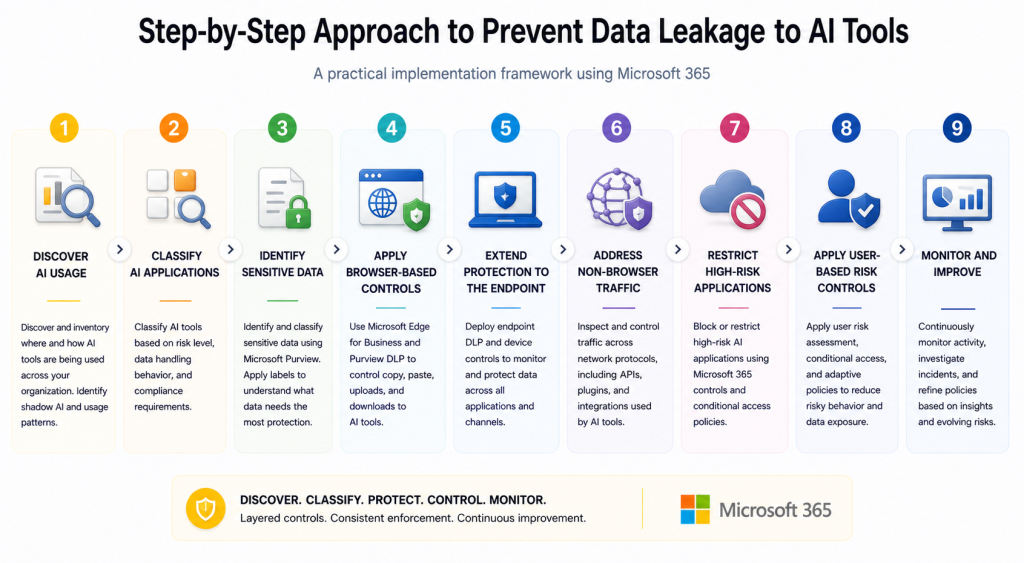
A phased implementation works best. It allows you to build visibility first and then introduce controls gradually without disrupting users.
Step 1: Discover AI Usage
Start by identifying which AI tools are already being used.
Using Microsoft Defender for Cloud Apps Discovered Apps, you can:
- Detect AI applications across the organisation
- Understand usage patterns
- Review risk scores
This step often highlights tools that were not previously approved or even known.
Step 2: Classify AI Applications
Next, define how each tool should be treated.
Group applications into:
- Sanctioned
- Monitored
- Unsanctioned
Apply this classification within Defender for Cloud Apps.
Keep in mind that marking an application as unsanctioned improves governance and visibility. However, access restrictions still need to be enforced separately.
Step 3: Identify Sensitive Data
Before applying controls, define what needs to be protected.
Using Microsoft Purview, configure:
- Sensitive information types
- Custom classifiers
- Data Loss Prevention Policies aligned to regulatory or internal requirements
This step ensures that data protection policies are accurate and effective
Step 4: Apply Browser-Based Controls
Most data exposure occurs through browser interactions.
Using Edge for Business with Purview DLP, configure policies to:
- Block copy paste of sensitive data into AI tools
- Prevent file uploads containing protected information
- Allow standard usage when no sensitive data is involved
- Log user activity for auditing
A typical policy includes:
- Scope: unmanaged AI applications
- Conditions: sensitive data or classifiers
- Actions: audit, warn, or block
Start in audit mode and transition to enforcement after validation.
Step 5: Extend Protection to the Endpoint
Browser-level controls do not cover all scenarios.
Using Endpoint DLP, extend protection to:
- Clipboard activity across applications
- File uploads to external services
- Data movement at the device level
This ensures consistent protection regardless of browser choice.
Step 6: Address Non-Browser Traffic
Some AI interactions occur outside browser sessions.
Using Network Data Security, you can:
- Monitor HTTP and HTTPS traffic
- Apply controls to non-Microsoft browsers
- Cover APIs, integrations, and plugins
This layer is particularly important in flexible or developer-heavy environments.
Step 7: Restrict High-Risk Applications
For tools that should not be used, apply stricter controls.
This includes:
- Blocking access through Microsoft Entra policies
- Applying governance actions in Defender for Cloud Apps
- Restricting installation using Intune
In some environments, application allowlisting provides stronger control than reactive blocking.
Step 8: Apply User-Based Risk Controls
User behaviour varies depending on role and access.
Using Insider Risk Management and Adaptive Protection, you can:
- Apply stricter policies to high-risk users
- Increase monitoring for sensitive activity
- Adjust controls dynamically
This approach helps balance security with usability.
Step 9: Monitor and Improve
After implementing controls, continuous monitoring is essential.
Using:
- Activity Explorer
- Audit logs
- Microsoft Defender XDR
You can:
- Track data sharing attempts
- Investigate incidents
- Refine policies based on real behaviour
Common Challenges in Real Environments
Even with a structured implementation, some challenges remain:
- Not all AI tools are immediately visible or supported
- Controls are more effective on managed devices
- Browser-based enforcement works best in Edge
- APIs and integrations require additional coverage
- Licensing can affect feature availability
Planning for these early helps avoid gaps during rollout.
AI tools like ChatGPT and Gemini are already part of how people work. Usage tends to grow quickly once teams see the benefits.
Therefore, the focus should be on:
- Understanding usage patterns
- Identifying data exposure risks
- Implementing controls that align with real workflows
A layered approach using Microsoft 365 security tools allows organisations to reduce risk while maintaining productivity.
Next Steps
If you’re unsure how exposed your organisation is, the starting point is a focused assessment.
This typically includes:
- Visibility into AI usage
- Identification of sensitive data exposure
- Review of existing controls
- Practical implementation roadmap
From there, it becomes easier to prioritise and deploy the right controls effectively.